Getting startedOpen to everyone
Join your firm's workspace
Get into your team's workspace with an invitation or a workspace slug, and invite colleagues once you are in.
3 min readUpdated 16 August 2026
Your firm's work in Lexi lives in a workspace. There are two ways in: a colleague invites you by email, or you ask to join using the workspace's slug.
If you have been invited, sign in with the address the invitation was sent to.
Ask to join with a workspace slug
- Get the workspace's ten-character slug from someone already in it.
- In Lexi, go to Profile › My Profile › Workspace Invites.
- Enter the slug under Join a Workspace and click Request to Join.
- An administrator of that workspace approves the request.
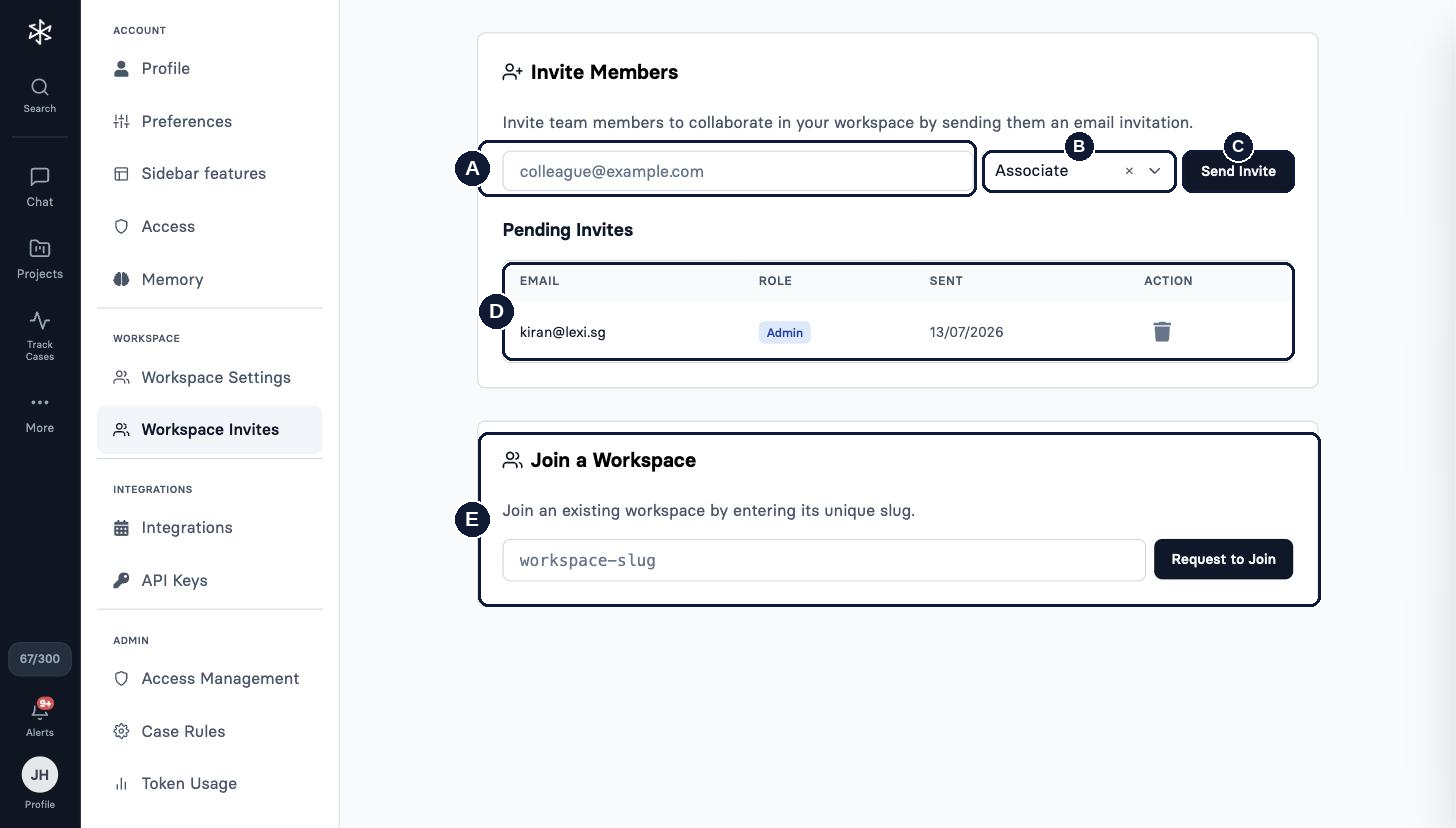
- A
- Email field: the colleague's address.
- B
- Role: defaults to Associate.
- C
- Send Invite: sends the email invitation.
- D
- Pending Invites: email, role, date sent, and a bin to withdraw the invitation.
- E
- Join a Workspace: enter a slug and click Request to Join.
Invite a colleague
- Go to Profile › My Profile › Workspace Invites.
- Enter the colleague's email address.
- Choose the role: Associate, unless they need to administer the workspace.
- Click Send Invite. The invitation appears under Pending Invites until it is accepted.
Signed in? Learn the basics next.
Once you are in, the Get started course takes about five minutes and covers finding your way around and getting your first useful answer out of Lexi.