Getting startedOpen to everyone
Sign in to Lexi
Sign in with a one-time email code, a passkey, or your Google, Microsoft or Apple account. There is no password to remember.
3 min readUpdated 16 August 2026
Lexi offers four ways to sign in, and all of them start at the sign-in screen. The default is a one-time code sent to your email address, so there is no password to remember.
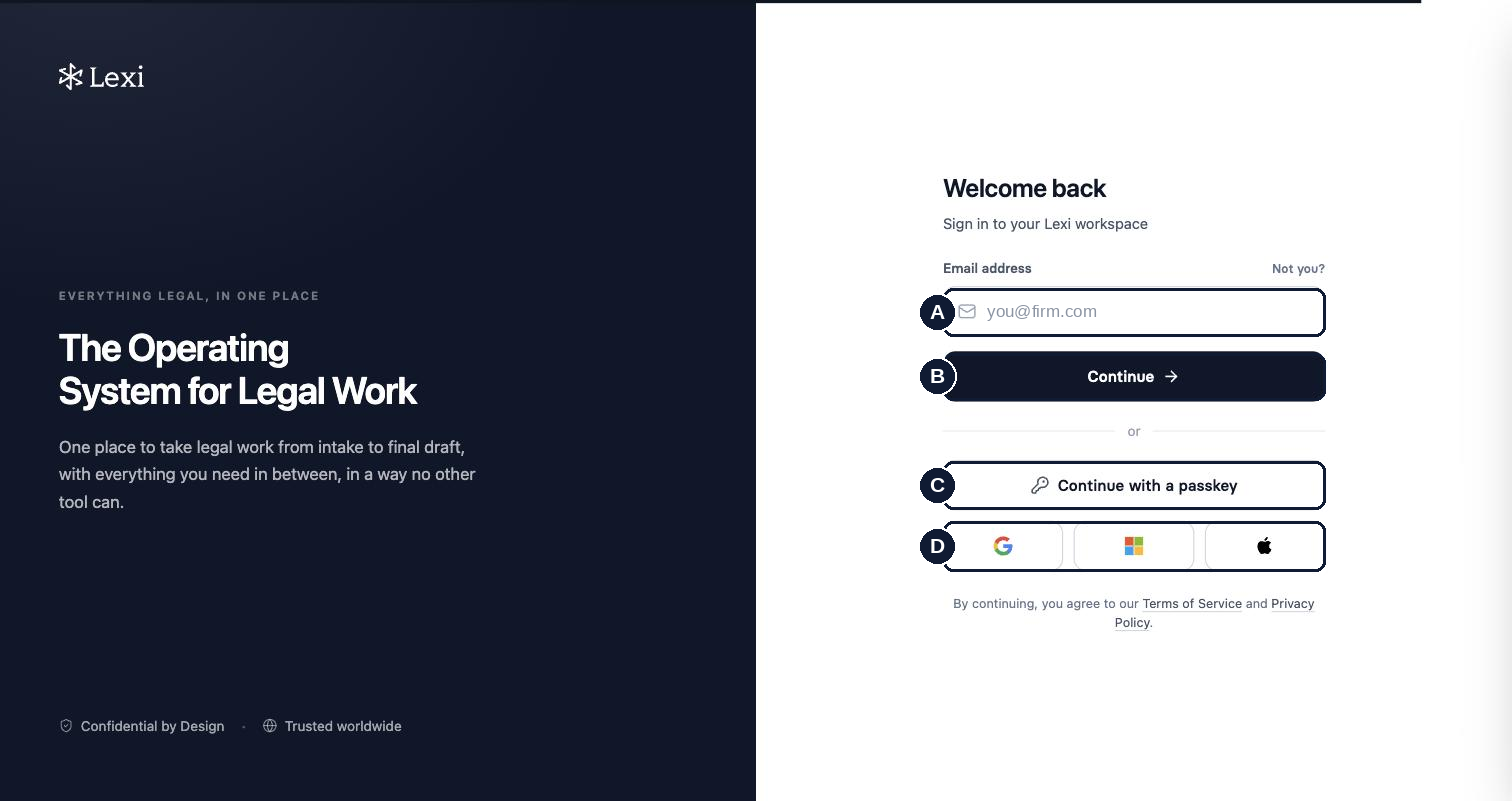
- A
- Email address: the address your Lexi account is registered against.
- B
- Continue: sends a one-time code to that address.
- C
- Continue with a passkey: sign in with Touch ID, Windows Hello, or a passkey stored in your password manager. See Set up a passkey.
- D
- Google, Microsoft and Apple: sign in with an existing account from one of these providers.
Sign in with a one-time code
- Open your firm's Lexi address in a browser.
- Type your email address into the Email address field.
- Click Continue. Lexi emails a one-time code to that address.
- Open the email and copy the one-time code.
- Enter the code in Lexi. You are signed in and land on the home page.
Sign in with a passkey or a provider account
- To use a passkey, click Continue with a passkey and follow your device prompt. A passkey must be enrolled on your account first.
- To use Google, Microsoft or Apple, click the matching button and complete sign-in with that provider. Use the same account your firm registered with Lexi.
Switching accounts. If the sign-in screen already shows someone else's email address, click Not you? above the field to clear it and sign in as yourself.
Signed in? Learn the basics next.
Once you are in, the Get started course takes about five minutes and covers finding your way around and getting your first useful answer out of Lexi.